![[Owner] Spacebug](https://minotar.net/avatar/SpaceBug/50)
Introduction to Optifine
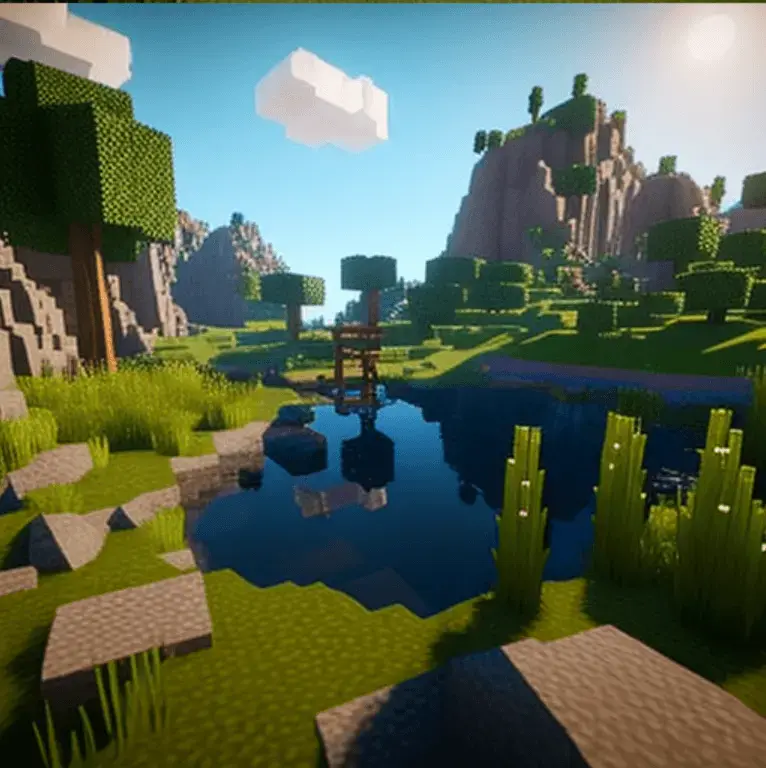
Optifine is a highly regarded Minecraft mod designed to optimize the game’s performance, enhance its graphics, and offer an array of customization options. Here you can see how to install Optifine for Minecraft. The modification provides better control over Minecraft’s settings, thereby making the game run smoother and faster even on less powerful computers. It’s a must-have for Minecraft enthusiasts who want to bring their gaming experience to the next level with improved visuals, reduced lag, and access to high-definition textures.
Prerequisites for Optifine Installation
Before diving into the installation process, it’s crucial to ensure that you have met all the necessary requirements. The key prerequisites include having Minecraft installed on your system and ensuring it’s a compatible version with the Optifine mod you intend to install. Additionally, Java must be installed on your computer since Minecraft and its mods are Java-based. If Java isn’t already installed, you can download it from the official website.
How to Check Your Minecraft Version
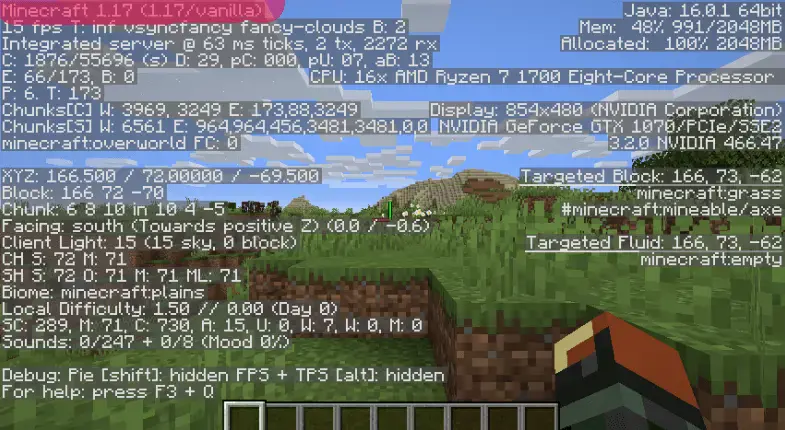
Knowing your Minecraft version is vital as different Optifine versions correspond to different Minecraft versions. To check your Minecraft version, launch the game and look at the bottom right corner of the launcher, where the version number is displayed. Alternatively, you can check the version in-game by pressing F3; the version will be displayed in the top left corner of the screen.
Downloading Optifine
The next step is downloading the correct Optifine version. Navigate to the official Optifine website and click on the “Downloads” section. It’s crucial to download Optifine from its official source to avoid any potential security risks. In the Downloads section, you’ll find different versions of Optifine. Choose the one that corresponds to your Minecraft version and click on the “Download” button to start the process.
Installing Optifine
Once the Optifine file is downloaded, the next step is to install it. Locate the downloaded file in your system—it should be a .jar file. Right-click on the file and select “Open with,” then choose “Java(TM) Platform SE binary.” A small installer window will appear. Click on the “Install” button and wait for the process to complete. After the installation, Optifine should be integrated into your Minecraft launcher.
Running Minecraft with Optifine
To run Minecraft with Optifine, open the Minecraft Launcher. Click on the arrow next to the “Play” button and choose the “Optifine” profile. Then, click “Play” to launch the game. If done correctly, you should see “Optifine” listed in the bottom left corner of the Minecraft main menu, indicating that the mod is active.
Configuring Optifine Settings
Optifine provides a plethora of customization options. To access these settings, click on “Options” from the main menu, then select “Video Settings.” Here, you can tweak settings like graphics, render distance, smooth lighting, and more. Remember, the optimal settings can vary depending on your PC’s specifications.
Troubleshooting Common Optifine Installation Issues
Some common issues that may arise during the Optifine installation process include not being able to run the .jar file or the Optifine profile not appearing in the Minecraft launcher. Most issues can be resolved by ensuring Java is up-to-date or by reinstalling both Java and Minecraft. Be patient and systematic when troubleshooting, as the solution is often simpler than it seems.

Maintaining and Updating Optifine
To ensure optimal game performance, keep your Optifine mod up-to-date. You can check for updates on the Optifine official website. When a new version of Minecraft is released, you may need to wait for a compatible Optifine version to be developed. Always remember to back up your Minecraft worlds before updating any mods.
Optimizing Minecraft Performance with Optifine
Aside from enabling high-definition textures and shaders, Optifine offers options for tweaking Minecraft to maximize performance. For instance, you can adjust render distance, turn off smooth lighting, or reduce graphics from ‘Fancy’ to ‘Fast’. Experimenting with different settings can yield significant improvements in game performance.
Conclusion and Further Resources
Installing and using Optifine can dramatically enhance your Minecraft gaming experience. Not only does it offer increased performance and stability, but it also allows for extensive customization, letting you tailor the game to your preferences. Remember, each system is unique, so take the time to understand and experiment with the settings that work best for you. Try follow our guide here on How to install Optifine for Minecraft.
For more information, visit the official Optifine website or engage with the Minecraft and Optifine communities online, where you can find more tips, tricks, and troubleshooting advice. Happy gaming!